Dashboard
Monitor, debug, and manage jobs through the enterprise Maxton-inspired UI.
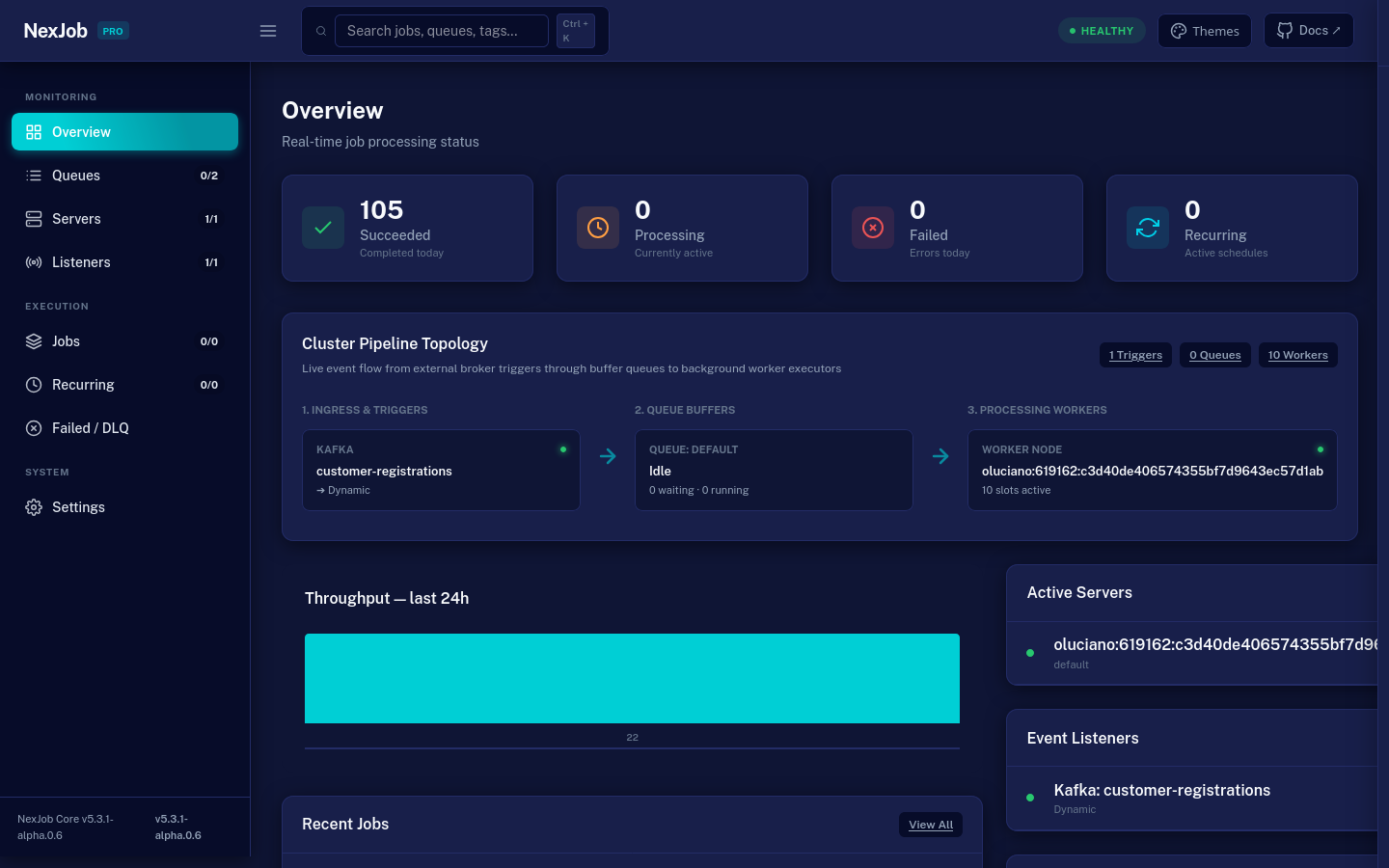
Features
- Maxton Design System: Complete visual modernization with a 64px Top Header, responsive collapsible sidebar toggle (☰), live cluster health indicator (
HEALTHY,DEGRADED,INCIDENT), and keyboard shortcut search (Ctrl + K). - 5 Built-In Themes: Instant 1-click theme customizer offcanvas drawer supporting
Blue Theme(Midnight - default),Dark,Light,Semi-Dark, andBordered, fully persisted inlocalStorage. - Cluster Pipeline Topology Map: Native animated SVG & CSS flowchart connecting Ingress & Triggers ➔ Queue Buffers ➔ Processing Workers with live activity pulses.
- Real-Time Live Log Streaming (SSE): Streaming log viewer on
/jobs/{id}displaying logs line-by-line via Server-Sent Events as the job executes. - Active Event Triggers & Listeners: Dedicated
/listenerspage monitoring connected message brokers (RabbitMQ, Kafka, SQS, Azure Service Bus, etc.), consumer groups, target queues, and status (Listening,Reconnecting,Faulted). - Interactive Controls & Time Filters: Pause and Resume queues with 1 click; filter jobs by time periods (
1h,6h,24h,7d). - Self-Contained Front End: native CSS and vanilla JS — no NPM or Webpack build and no JavaScript/CSS framework from a CDN. The only external request is the Public Sans web font, loaded from Google Fonts.
Packages
The dashboard UI is self-contained and pre-packaged, but kept in dedicated NuGet packages to avoid dragging web dependencies into headless workers:
| Application Type | NuGet Package | Setup Method |
|---|---|---|
| ASP.NET Core Web App | NexJob.Dashboard |
app.UseNexJobDashboard() |
| Worker Service / Console | NexJob.Dashboard.Standalone |
services.AddNexJobStandaloneDashboard() |
ASP.NET Core
1. Install Package
dotnet add package NexJob.Dashboard
2. Configure Program.cs
[!IMPORTANT]
builder.Services.AddMemoryCache()is registered automatically byAddNexJob(). You can configure dashboard options via delegate orappsettings.json.
using NexJob;
using NexJob.Dashboard;

var builder = WebApplication.CreateBuilder(args);

// Register NexJob (registers in-memory storage by default, or your preferred provider)
builder.Services.AddNexJob();

var app = builder.Build();

// Mount dashboard middleware (default: /dashboard)
app.UseNexJobDashboard();

// Or custom path and options:
// app.UseNexJobDashboard("/dashboard", options =>
// {
//     options.Title = "Enterprise NexJob Console";
//     options.MetricsCacheTtl = TimeSpan.FromSeconds(3);
// });

app.Run();
Standalone (Worker Services)
For Worker Services or console applications that do not have their own ASP.NET Core HTTP pipeline, use the standalone dashboard. It runs an embedded HTTP server hosting the UI.
1. Install Package
dotnet add package NexJob.Dashboard.Standalone
2. Configure Program.cs
using NexJob;
using NexJob.Dashboard.Standalone;

var builder = Host.CreateApplicationBuilder(args);

// Register NexJob
builder.Services.AddNexJob();

// Registers embedded HTTP server (default: http://localhost:5005/dashboard)
builder.Services.AddNexJobStandaloneDashboard();

// Or customize host and port:
// builder.Services.AddNexJobStandaloneDashboard(options =>
// {
//     options.Port = 5005;                 // default 5005
//     options.Path = "/dashboard";         // default "/dashboard"
//     options.Title = "Worker Dashboard";
//     options.LocalhostOnly = true;        // default true: loopback only; false listens on all interfaces
//     options.PollIntervalSeconds = 3;     // default 3
// });

var host = builder.Build();
host.Run();
Security: the standalone dashboard listens on loopback only by default (
LocalhostOnly = true). Inside a container that makes it unreachable through a published port, so there you setLocalhostOnly = falseand register anIDashboardAuthorizationHandler(see Authorization) or restrict the port with a firewall or network policy. Anyone who can reach an exposed port can read job payloads (which may hold personal data) and run actions such as pausing queues, requeueing and triggering jobs. WithLocalhostOnly = falseand no handler registered, NexJob logs a warning at startup.
Authorization
By default, the dashboard is open. Add authorization by implementing IDashboardAuthorizationHandler.
public sealed class AdminDashboardAuth : IDashboardAuthorizationHandler
{
    public Task<bool> AuthorizeAsync(HttpContext context)
    {
        // Example: check for admin role
        return Task.FromResult(context.User.IsInRole("Admin"));
    }
}

builder.Services.AddTransient<IDashboardAuthorizationHandler, AdminDashboardAuth>();
The dashboard uses a single handler: the last IDashboardAuthorizationHandler registered in DI. If you need several rules, combine them inside that handler. A request the handler rejects gets 401 Unauthorized.
Authorization in the standalone dashboard
The standalone dashboard enforces the handler you register in your host (any lifetime works). It runs no authentication middleware, so context.User is never authenticated there: the example above, which reads context.User, would deny every request. The handler has to authenticate the request itself from context.Request. A handler that returns false can set response headers first, so it can ask the browser for credentials. This example uses HTTP Basic:
public sealed class BasicAuthDashboardHandler(IConfiguration config) : IDashboardAuthorizationHandler
{
    public Task<bool> AuthorizeAsync(HttpContext context)
    {
        var expected = config["Dashboard:Credentials"]; // "user:password"
        if (!string.IsNullOrEmpty(expected)
            && TryReadCredentials(context, out var provided)
            && CryptographicOperations.FixedTimeEquals(Encoding.UTF8.GetBytes(expected), Encoding.UTF8.GetBytes(provided)))
        {
            return Task.FromResult(true);
        }

        // Ask the browser for credentials. The dashboard answers 401 when this returns false.
        context.Response.Headers.WWWAuthenticate = "Basic realm=\"NexJob\"";
        return Task.FromResult(false);
    }

    private static bool TryReadCredentials(HttpContext context, out string credentials)
    {
        credentials = string.Empty;
        var header = context.Request.Headers.Authorization.ToString();
        if (!header.StartsWith("Basic ", StringComparison.OrdinalIgnoreCase))
        {
            return false;
        }

        try
        {
            credentials = Encoding.UTF8.GetString(Convert.FromBase64String(header["Basic ".Length..].Trim()));
            return true;
        }
        catch (FormatException)
        {
            return false;
        }
    }
}

builder.Services.AddSingleton<IDashboardAuthorizationHandler, BasicAuthDashboardHandler>();
Send the credentials over HTTPS (put a TLS-terminating proxy in front), because Basic is not encrypted. A handler that throws never grants access.
Debugging Failed Jobs
- Open the dashboard and navigate to Failed tab
- Click on a failed job to see:
- Error message and full stack trace
- Number of attempts and retry timeline
- Job input (the stored JSON payload)
- Queue, tags, and creation/completion timestamps
- Use this information to diagnose and fix the issue
Reading the Execution Timeline
The job detail page shows the lifecycle as a timeline of events, with the time of day (UTC) on each:
Enqueued          10:00:01   queue: default · priority: Normal
Processing        10:00:03   attempt 1/3
Failed            10:00:05   <error message>
Retry scheduled   10:00:35   in 30s
Processing        10:00:36   attempt 2/3
Succeeded         10:00:38
A Timing block beside it shows:
- Enqueue → Start — how long the job waited before a worker took it; high values indicate insufficient workers
- Duration — from start to completion; high values indicate a slow job or a slow external dependency
- Total Age — time since the job was created
The gap between Failed and the next Processing is the retry backoff.
Settings Page (/settings)
The settings page shows the effective value of each runtime setting (a runtime override if one exists, otherwise the value from NexJobOptions) and lets an operator change some of them without redeploying. Overrides are stored in the IRuntimeSettingsStore of the active storage, so they survive restarts and are shared by every node:
| Form | Route (POST) | Effect |
|---|---|---|
| Polling interval | settings/polling |
Overrides PollingInterval |
| Retention | settings/retention |
Overrides RetentionSucceeded, RetentionFailed, RetentionExpired and RetentionDeadLetter, entered in days (0 keeps that kind of job forever) |
| Reset | settings/reset |
Clears all overrides so the code/appsettings.json values apply again |
Read-only clusters (isReadOnly: true in a federated dashboard) reject these actions. RetentionBatchSize has no field on the page; it can be set through IRuntimeSettingsStore.
Requeuing Safely
The dashboard allows requeuing failed or expired jobs:
- Select the job in the Failed or Expired tab
- Click Requeue (the job detail page has the same button; the list pages offer a bulk "Requeue all")
Important: Requeue puts the same job (same id and input) back in the Enqueued state, with its attempt counter reset to zero and the previous error cleared. It does not create a copy, so the failure history of the previous run is not kept on the record. If you need an audit trail, log the failure in a dead-letter handler before requeuing.
Monitoring Queues
The dashboard shows:
- Queue depth (jobs waiting per queue)
- Processing jobs (currently executing)
- Paused queues (managed via runtime settings)
- Worker count and active servers
Multi-Service Architecture & Dashboard Queue Isolation
When running multiple independent microservices against a shared database or cluster, each service typically owns a dedicated set of queues (e.g. billing, inventory, notifications).
Dedicated Ops Host Mode
To avoid background processing on the ops dashboard host, configure DisableWorkers = true:
builder.Services.AddNexJobStandaloneDashboard(options =>
{
    options.Port = 5005;
    options.Path = "/dashboard";
    options.Title = "Global Ops Dashboard";
    options.DisableWorkers = true; // Sets Workers = 0 on this host
});
Queue Scoping (Isolation)
You can scope any dashboard instance to a subset of queues via options.Queues. The dashboard will filter navigation counters, queue cards, and default job queries exclusively to those queues:
// In ASP.NET Core:
app.UseNexJobDashboard("/dashboard", options =>
{
    options.Title = "Billing Service Dashboard";
    options.Queues = ["billing", "invoices"];
});

// In Standalone Dashboard:
builder.Services.AddNexJobStandaloneDashboard(options =>
{
    options.Title = "Inventory Ops";
    options.Queues = ["inventory", "warehouse"];
    options.DisableWorkers = true;
});
When scoped to a single queue, the /jobs page automatically defaults its filter to that queue.
Multi-Cluster Dashboard Federation
Federate and aggregate multiple independent NexJob clusters (e.g. production, staging, regional clusters, or multi-tenant databases) within a single dashboard UI without installing extra packages.
Registering Clusters
Register named DashboardCluster instances via DashboardOptions.AddCluster or StandaloneDashboardOptions.AddCluster:
// ASP.NET Core Web App
app.UseNexJobDashboard("/dashboard", options =>
{
    options.Title = "Global Management Console";
    options.AddCluster(new DashboardCluster(
        id: "prod-us",
        name: "Production (US-East)",
        dashboardStorage: prodStorage,
        isReadOnly: true)); // Disables mutating POST actions

    options.AddCluster(new DashboardCluster(
        id: "prod-eu",
        name: "Production (EU-West)",
        dashboardStorage: euStorage,
        isReadOnly: true));

    options.AddCluster(new DashboardCluster(
        id: "staging",
        name: "Staging Cluster",
        dashboardStorage: stagingStorage,
        isReadOnly: false));
});

// Or in Standalone Dashboard:
builder.Services.AddNexJobStandaloneDashboard(options =>
{
    options.Port = 5005;
    options.Title = "Ops Federation Hub";
    options.DisableWorkers = true; // Dedicated ops host mode
    options.AddCluster(new DashboardCluster("cluster-a", "Billing Cluster", billingStorage));
    options.AddCluster(new DashboardCluster("cluster-b", "Logistics Cluster", logisticsStorage));
});
Multi-Cluster UI & Switching
- When 2 or more clusters are registered, a Cluster Switcher dropdown automatically appears in the top header.
- Active cluster selection is persisted and controlled via the URL query parameter
?cluster={id}. - If no cluster parameter is supplied or an unknown ID is specified, the dashboard defaults gracefully to the first registered cluster.
- All metrics cards, servers, recurring jobs, log modals, and SSE streams (
/stream) route exclusively to the active cluster. - Read-only clusters (
isReadOnly: true) reject mutating actions (Run Now, Requeue, Delete, Pause/Resume) with403 Forbiddenand hide execution buttons. - When no clusters are registered, the dashboard operates seamlessly in single-cluster mode querying services directly from DI.
Job Catalog & Definitions (/catalog)
Inspect distinct job types, performance metrics, queue distributions, error rates, and trigger parameterless jobs on demand.
Key Capabilities
- Aggregated Telemetry: Distinct job types and queues aggregated via
IDashboardStorage.GetJobCatalogAsync(), reporting total executions, succeeded count, failed count, failure rate percentage, and average execution duration. - Deep History Linking: Each catalog entry features a direct History link navigating to
/jobs?search={JobType}&queue={Queue}, immediately filtering historical execution records for detailed diagnostics. - On-Demand Ad-Hoc Execution (Trigger): For parameterless jobs implementing
IJob, execute jobs immediately with a single click from the catalog table. (Disabled automatically on read-only clusters). - Cluster & Multi-Tenant Aware: Seamlessly reflects catalog statistics for the active cluster selected in multi-cluster federation (
?cluster={id}).
[!WARNING] Storage Provider Deprecation Notice:
IDashboardStorage.GetJobCatalogAsynccurrently features a default interface implementation for backward compatibility. In NexJob v6.0, this method will become abstract across all storage providers. Custom storage providers should implement native aggregated queries (GROUP BY job_type, queue) to prepare for v6.0.
Orphan Queues & Worker Indicators
The dashboard automatically tracks queue health against registered, active worker nodes (ServerRecord heartbeats):
- Queues Page (
/dashboard/queues): When a queue contains enqueued jobs (Enqueued > 0) but has no active worker nodes listening to it, a warning badge⚠️ NO WORKERSand an explanatory subtitle are displayed on the queue card. - Servers Page (
/dashboard/servers): Displays a prominent warning banner identifying unattended queues that have jobs waiting but 0 configured worker nodes. - Catalog Trigger Modal (
/dashboard/catalog): When triggering a job into a queue that has no active workers, a notice is displayed alerting the operator that jobs will wait in queue until a worker is online.
Next Steps
- Configuration Reference — Dashboard options
- Troubleshooting — Dashboard not showing jobs
- Best Practices — Production dashboard guidelines